
For college coaches · recruiting staffsBeta — unsigned test build
Recruiting CRM
Keep every recruit, contact and follow-up organized in one place, so your staff always knows who's next.
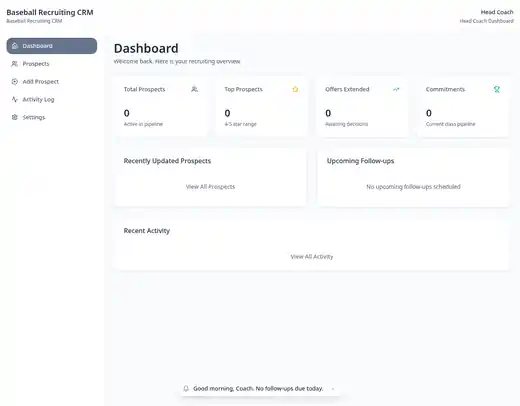
Recruiting dashboard
Total prospects, top prospects, offers out and commitments at a glance.
Prospect pipeline
Every recruit in one list, with ratings, notes and where they stand.
Follow-up reminders
See who you owe a call, text or visit, so nobody slips through the cracks.
Activity log
A running record of every contact and update across your staff.
Quick add
Add a prospect in seconds from a showcase or camp.
Private by default
Your recruiting board stays on your computer.
Which download is right for me?
What are you on?
Does your Mac have an Apple chip or Intel?
Not sure? Click the Apple menu (the apple logo in the top-left corner), then About This Mac. If it says “Chip: Apple M1” (or M2, M3, M4…) you have an Apple chip. If it says “Processor: … Intel”, it's an Intel Mac.
Already installed? The CRM updates in-app: click the Update button when a new version is ready.
Beta test build: how to open it anyway
This early build isn't signed by Apple or Microsoft yet, so your computer may warn you the first time. That's expected for a test build.
On a Mac
- Open the downloaded .dmg and drag Baseball Recruiting CRM into your Applications folder.
- Double-click the app. If macOS says it can't check it, click Done.
- Open System Settings → Privacy & Security, scroll down and click Open Anyway.
- Confirm with your password. After that it opens normally.
On Windows
- Run the downloaded .exe installer.
- If you see “Windows protected your PC”, click More info.
- Click Run anyway and follow the installer.